BibliU
Students may now begin purchasing course materials through the BibliU platform. Step-by-step instructions for completing your purchase are provided below.
Please allow 3–5 business days for printed course materials to be delivered. If you will be living on campus or are in the process of changing your address, we recommend carefully selecting the most appropriate delivery address before placing your order.
Students may be allowed to purchase course materials by charging to their student account at MPCC. Any remaining balance on your student account will be billed to you. If you have questions, please contact 308-535-3672 for assistance.
Note: If you have any questions, please reach out to BibliU’s customer support team at support@bibliu.com.
Step-by-step Process
Note: Make sure to have your MPCC student email available before beginning this process.
- Click MyMPCC in the upper right
- Select Campus Web
- Click on the "Register" icon on Campus Web homepage
- Select MPCC Bookstore under Books For My Courses section
- Select books in desired format and click add to cart for all required classes
- Click complete checkout in the bottom right to view entire cart
- Finalize your purchase by clicking the checkout button and creating an account using your MPCC student email.
Book Purchasing
This video begins after students have accessed Campus Web from the MyMPCC apps page. Students can access the MyMPCC Apps page by clicking in the upper right hand corner of the page.
Creating Your MPCC Bookstore Account
Students are required to use their MPCC email to create an account upon completing their textbook purchase.
Frequently Asked Questions (FAQs)
The inclusive access program ensures affordable access to course content and is integrated within the structure of the class, so it is ready to access on the first day.
The cost of your course materials is already included in your class fees. This can provide you with significant savings compared to purchasing the materials independently.
To see which classes are included in the program, please access the campus website. Simply enter the course information. Inclusive access courses will be stated as such (example below).
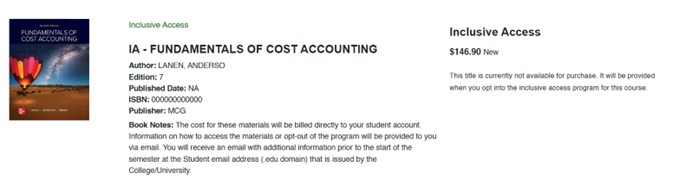
You are able to opt-out of the program and view all of your inclusive access classes here. Opting out means you will be responsible for sourcing your course materials independently.
Students should use Google Chrome or the BibliU apps where possible for the best experience.
Students can download the BibliU app for free and read books in offline mode. The apps reduce the need for high speed internet.
Reach out to the BibliU support team (support@bibliu.com) which will raise a ticket which is tracked by BibliU until a resolution is in-place.
If the student is in a class receiving BibliU eBooks, there should be a link to BibliU within the LMS class page.
If the student is enrolled in the class, the book will appear in the BibliU bookshelf.
Coded Courseware:
1) To access courseware requiring a courseware code, students should click the BibliU link in the class page.
2) Students will see a ‘book’ with the class number, which includes the courseware access code and a link to the courseware website.
Non Coded Courseware:
1) The courseware is accessible directly from the course page. Faculty must set up their courseware in order for this to work.
The student should look in their BibliU bookshelf to see whether a book containing the access code is available.
If the access code is not working, please reach out to support@bibliu.com who will provide instructions and a new code if needed.
